L Blog
Remap a Key swap Ctrl and Win without touching the registry
A small Windows tray app that remaps keys instantly: no reboot, no admin rights, and quitting the app puts every key back to normal.
If you move between a Mac and a Windows PC, your fingers keep reaching for the wrong key. Ctrl and Win sit where Cmd and Ctrl would be, Caps Lock does nothing useful, and some keys you’d simply rather not have. Remap a Key is a small Windows tray app that fixes that: pick a key, pick what it should act as, and it works straight away.
The source is public on GitHub.
What it does
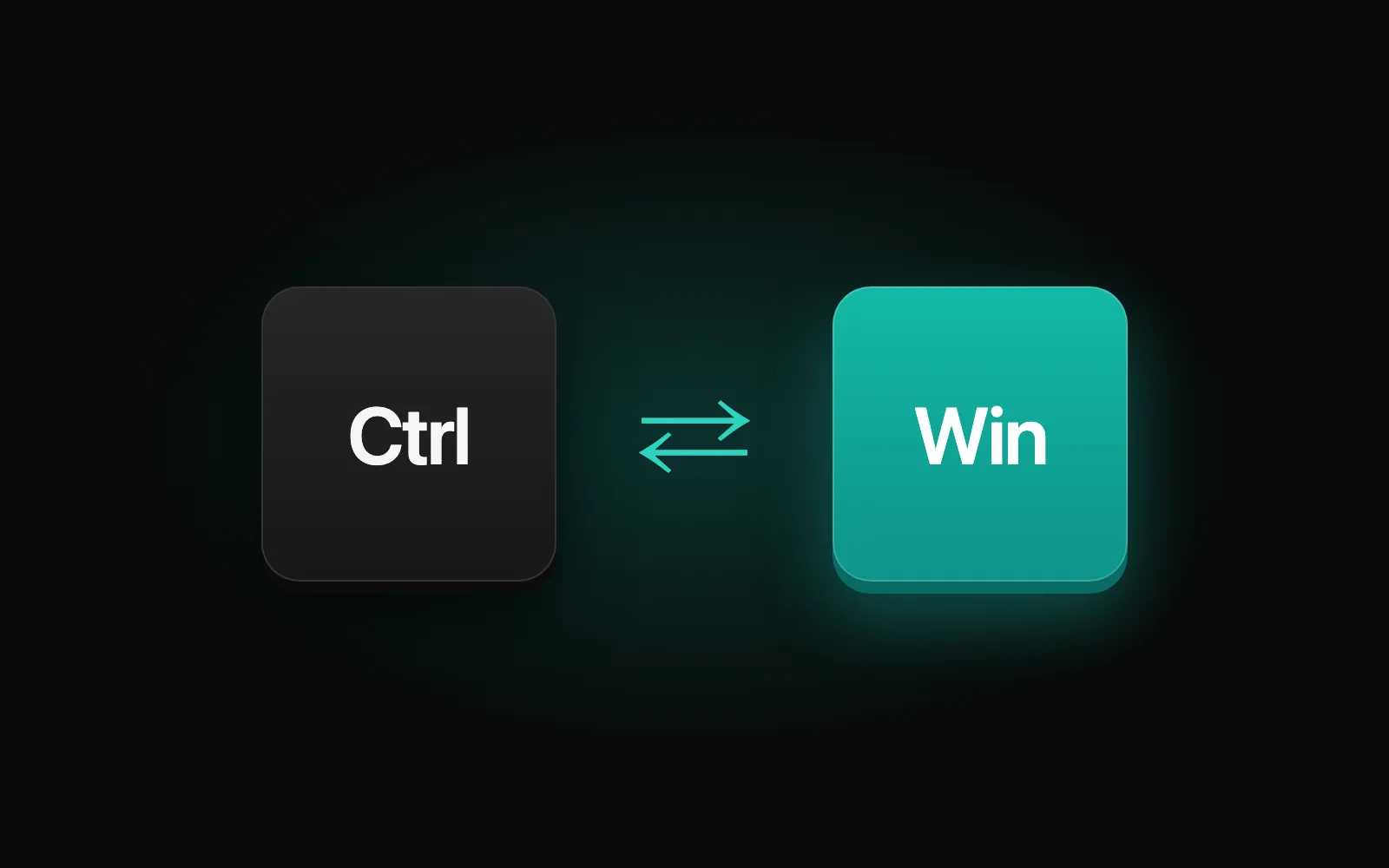
- Swap keys. Ctrl ⇄ Win, Alt ⇄ Win, or any other pair.
- Replace a key. Turn Caps Lock into Ctrl or Esc.
- Disable a key you keep hitting by accident.
- Remap one side only. Left and right modifier keys are separate (Left Ctrl, Right Ctrl and so on), so you can change just one of them.
Remaps apply instantly and across all your apps. There’s no reboot, no admin rights and no registry hacking. And when you quit the app, every key goes back to normal.
Using it
- Run
RemapAKey.exe. A window opens and an icon appears in the system tray. - Click Add…, then choose the key you press and the key it should act as. You can type it into the list, or click Press a key… and hit it on the keyboard.
- Leave Also do the reverse ticked to make it a swap, for example Left Ctrl ⇄ Left Win.
- Or skip all that and open Presets for common setups: Ctrl ⇄ Win, Alt ⇄ Win, Caps Lock → Ctrl and more.
- Close the window. The app keeps running in the tray, and a right-click on the icon lets you pause remapping or exit.
Your list is saved to %APPDATA%\RemapAKey\config.json. If you tick Start with Windows, the app launches minimized to the tray at login.
Limitations
It’s a small tool, and there are a few things it can’t do:
- Ctrl+Alt+Del and Win+L are handled by Windows itself and can’t be remapped.
- Windows running as administrator, and the UAC prompt, don’t see your remaps unless Remap a Key is also run as administrator.
- Punctuation key names (Semicolon, Quote and so on) follow a US layout. On other layouts they’re the same physical keys, just labelled differently.
How it’s built
Remap a Key is written in C# on .NET 10, with a WinForms window and tray icon. It’s split in two:
RemapAKey.Coreis the platform-independent part: the key catalog, the config and presets, and theRemapEngine, which decides for every key event whether to pass it on, block it or replace it. It has unit tests, and they run on any OS.RemapAKeyis the Windows part. A low-level keyboard hook (WH_KEYBOARD_LL) feeds each keystroke to the engine, and replacements are sent withSendInput. Those sent keys are tagged, so the hook ignores its own output and doesn’t loop.
Because the remapping happens in a hook while the app runs, nothing is written to Windows. That’s why quitting the app is all it takes to undo everything.
The release is a single self-contained RemapAKey.exe, so you don’t need to install .NET. Building it yourself takes two commands, and you can even cross-compile it from a Mac:
dotnet test
dotnet publish src/RemapAKey -c Release -o publish
Download
The exe isn’t code-signed, so Windows SmartScreen may warn you the first time you run it. Choose More info, then Run anyway. If you’d rather not trust a binary, the repository has everything you need to build it yourself.